
How Many Photos Do You Need for Photogrammetry?
The honest short answer is that it depends — but if you came here for a number, here's a table you can act on in five seconds.
| What you're scanning | Photos | Notes |
|---|---|---|
| Small object (mug, shoe, sculpture) | 40–80 | Hand-sized, on a table. Three rings at three heights. |
| Medium object (chair, motorcycle, person) | 80–150 | More circumferential coverage needed; concavities push the count up. |
| Large object or single room | 150–300 | Walk the perimeter, plus orbital sub-scans for corners and fixtures. |
| Building exterior or terrain | 300–500+ | Usually drone capture with planned flight grids. |
Those ranges line up with what Pix-pro's photo-amount guide and Centerline Design's photogrammetry-how-many-photos breakdown report as the practical floor: 20–250 photos covers most consumer photogrammetry, with the higher end of each range pushing into "comfortable margin" territory.
This is article four of a ten-part series. Articles one through three covered what photogrammetry is, how to capture for it, and where it sits next to LiDAR and structured light. This one is the most-asked practical question — and the part of the answer that table doesn't show.
The Count Is a Side Effect of Overlap

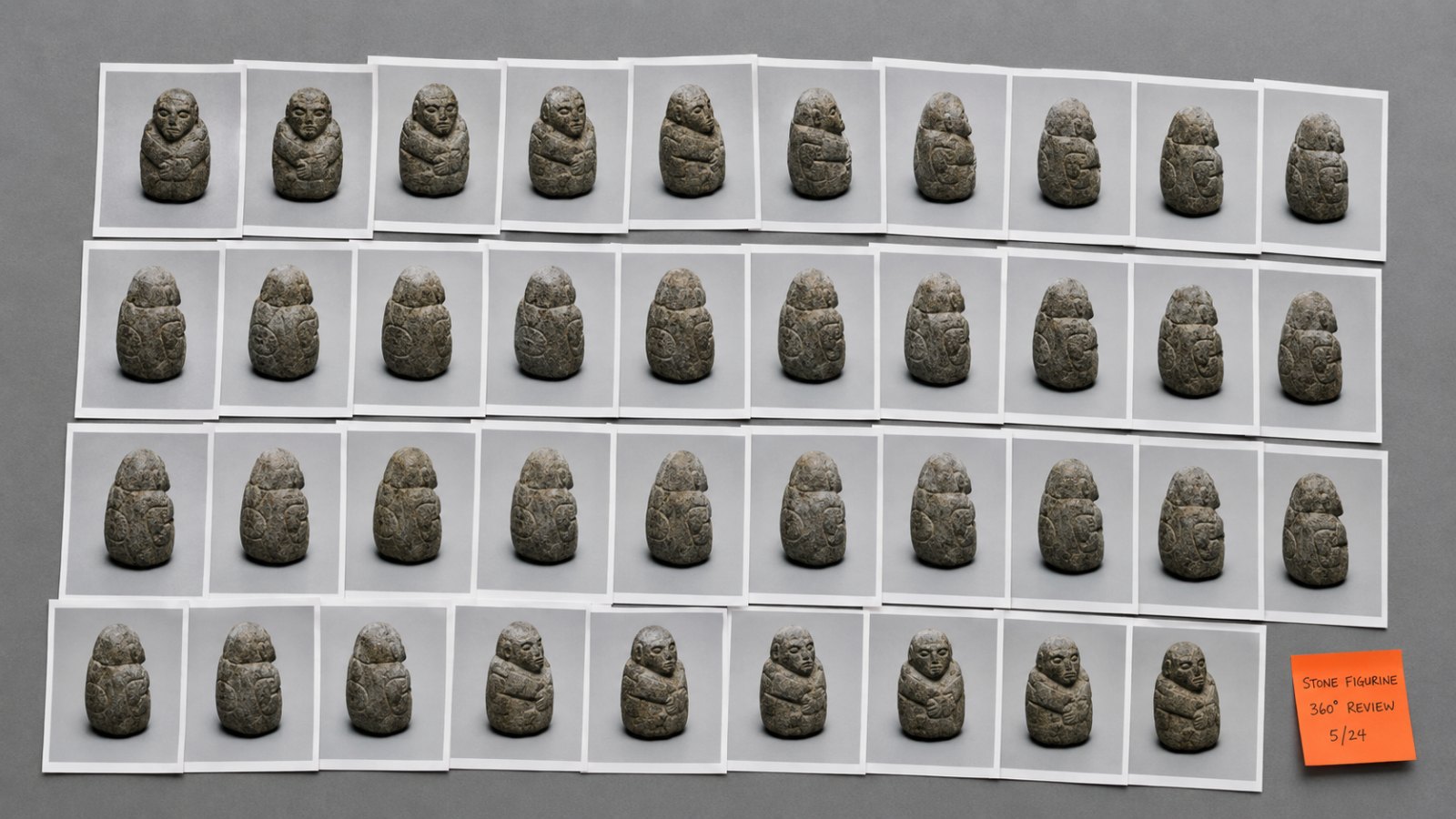
Photo count alone is a misleading metric. You can shoot 200 photos of an object and end up with a broken reconstruction; you can shoot 50 and get a watertight mesh. The variable that actually matters is overlap — how much surface area is shared between consecutive photos.
The rule the algorithm enforces under the hood: every surface point you want reconstructed has to appear in at least two photos, and ideally three. Drew Silcock's overlap-geometry analysis puts the theoretical minimum at four cameras for a simple convex object and nine for anything with concavities — but theoretical minimums don't account for failed matches, motion blur, or surfaces that the matcher can't read. Real-world capture aims well above the floor.
In practice, that translates to a single percentage you can sanity-check on the fly: aim for 60–80% overlap between any two consecutive photos. Below 60%, the matcher can lose the thread and the model falls apart into floating fragments. Above 80% you're being conservative — which is the right move on your first attempt.
What Overlap Actually Means in the Frame
If you're walking a circle around an object and shooting handheld, "60% overlap" means: take a step, frame the object, shoot, take a step. The object barely moved in the viewfinder between shots. If the object jumped from the right edge of the frame to the left, your overlap is too low.
The same logic applies vertically when you change height between rings, and angularly when you tilt the camera to catch the top or bottom of the object. Every transition needs to be smooth — no big jumps.
A pattern that works for hand-sized objects on a table:
- Eye-level ring: one photo every 10° around the object → 36 photos.
- High ring (camera angled down ~45°): one photo every 15° → 24 photos.
- Low ring (camera angled up ~30°): one photo every 15° → 24 photos.
That's 84 photos for a small object — a touch above the 40–80 range in the table, which is exactly the comfortable margin you want once you account for one or two re-shoots of tricky angles. The complete capture guide walks through the orbit pattern in more detail.
Textured Surfaces Tolerate Less Overlap. Smooth Ones Need More.
The other variable that distorts the count is what the surface looks like.
Photogrammetry finds the same physical point across multiple photos by matching pixel patterns — corners, edges, colour variations, anything visually distinctive. A weathered stone, a printed mug, a leather shoe all give the matcher hundreds of features per square centimetre, and the algorithm has plenty of redundancy. You can get away with the lower end of the overlap range.
Smooth, glossy, or low-contrast surfaces have almost nothing to match. A white ceramic vase, a freshly painted wall, or a polished chrome bumper give the matcher very few useful features per frame, and missed features compound. On those surfaces you need either more overlap (push toward 80%+) or a surface treatment — matte spray, cross-polarisation, projected speckle pattern. The last article in this series (reflective and textureless objects, coming soon) covers the workarounds in depth.
The rough multiplier: for a tough surface, plan to shoot roughly 50% more photos than you would for a textured object of the same size.
Aerial and Drone Capture Has Its Own Numbers
For outdoor scenes and buildings shot from a drone, the overlap rules tighten. The industry standard, used by Blue Marble's drone-overlap guide and Drones Made Easy's overlap-management documentation, is:
- 75–85% front overlap (between consecutive photos along the flight path)
- 60–75% side overlap (between adjacent flight lines)
Those percentages get baked into the flight plan inside most drone apps, so you set them once and the autopilot handles the photo timing. A 1-acre site at moderate resolution sits around 300–500 photos; a building exterior with the same overlap rules is similar. Drone capture is less forgiving than tabletop work because you can't shoot a make-up frame after landing — get the overlap right in the flight plan.
Five Mistakes That Wreck Your Photo Count
Even at 200 photos, the reconstruction can fail if the photos themselves don't behave as a coherent set. Per Autodesk's photogrammetry troubleshooting reference and Pix-pro's misconceptions piece:
- Exposure shifting between photos. Auto mode + changing light = the matcher reads brightness changes as moving texture. Lock exposure.
- Pinch-zooming mid-shoot. Each focal length is, from the algorithm's perspective, a different camera. Pick a focal length, leave it.
- Cropping or editing before processing. Software wants raw, untouched JPGs with intact EXIF data. Crop after reconstruction, not before.
- Motion blur from a slow shutter. A blurry photo contributes nothing to feature matching. Keep shutter at 1/125 or faster handheld.
- One ring at one height. Half the object — the part you can't see from eye level — gets no coverage. You'll see the hole in the final mesh.
Each of those failures is a topic the series picks up in detail. Camera settings get their own treatment in article six (coming soon); the full first-scan recovery guide is article eight (coming soon).
When You're Done Shooting
If you took photos in the upper end of the range above, took them at three heights, and didn't change exposure or focal length mid-shoot, your photo count is fine. Don't second-guess it — get the set into Replica and look at what comes out. The Getting Started manual covers the import workflow.
The free tier accepts up to 50 photos per project, which is enough to scan most small objects and to verify your capture pattern works end-to-end before committing to a paid project. Replica processes everything locally on your Mac — your photos and the reconstructed model never leave the machine.
If you'd like to see what 116 well-captured photos produce, the free Appian Tomb dataset on Gumroad gives you the full photo set plus the finished 3D model. Drop the photos into Replica and watch the reconstruction come together — it's the fastest way to calibrate your own count and overlap intuition.
Next in the Series
Now that you know how many to shoot, the next question is which 3D method to use in the first place. Article five — Photogrammetry vs AI 3D Generation: An Honest 2026 Comparison — places photo-based capture next to the new generation of AI 3D tools and works through where each one wins.
Questions or a scan that won't behave? Reach out at info@ambiensvr.com.